

Building Intelligence in Excel
 Microsoft
Overview
Excel is powerful, but its complexity can make working with data intimidating. When I joined Microsoft’s Excel design team in 2015, I saw an opportunity to make data more approachable—helping people understand and work with their data without needing to become Excel experts.
At the time, there was no clear vision or roadmap for solving this data-literacy problem. I began with 4 months of foundational field research, observing how people used Excel in their day-to-day work, then developed the vision and successfully pitched the initiative for funding. I then led the end-to-end UX, partnering with more than 25 PMs, engineers, data scientists, and design researchers.
The result was Excel Ideas, which shipped to millions of users worldwide and reached 1 million monthly active users by 2020. Today, the technology and interaction model behind Ideas form the backbone of Copilot in Excel.
Note: “Insights” and “Ideas” are used interchangeably as the feature was rebranded mid-project.
Phase 1 - Creating a Product Vision
The Problem
As the sole product designer and founding member of the project, I worked with an engineering manager, PM lead, and researcher to understand how people actually work with data.
For the first four months, we conducted extensive field research, visiting users in their workplaces and observing how they used Excel to make decisions. We found that 80% of their time was spent organizing, analyzing, and presenting data. In practice, there was an abundance of data but a scarcity of data skills. Excel expected people to learn its tools and adapt their workflow to the product, even when they simply wanted answers to straightforward questions about their data.
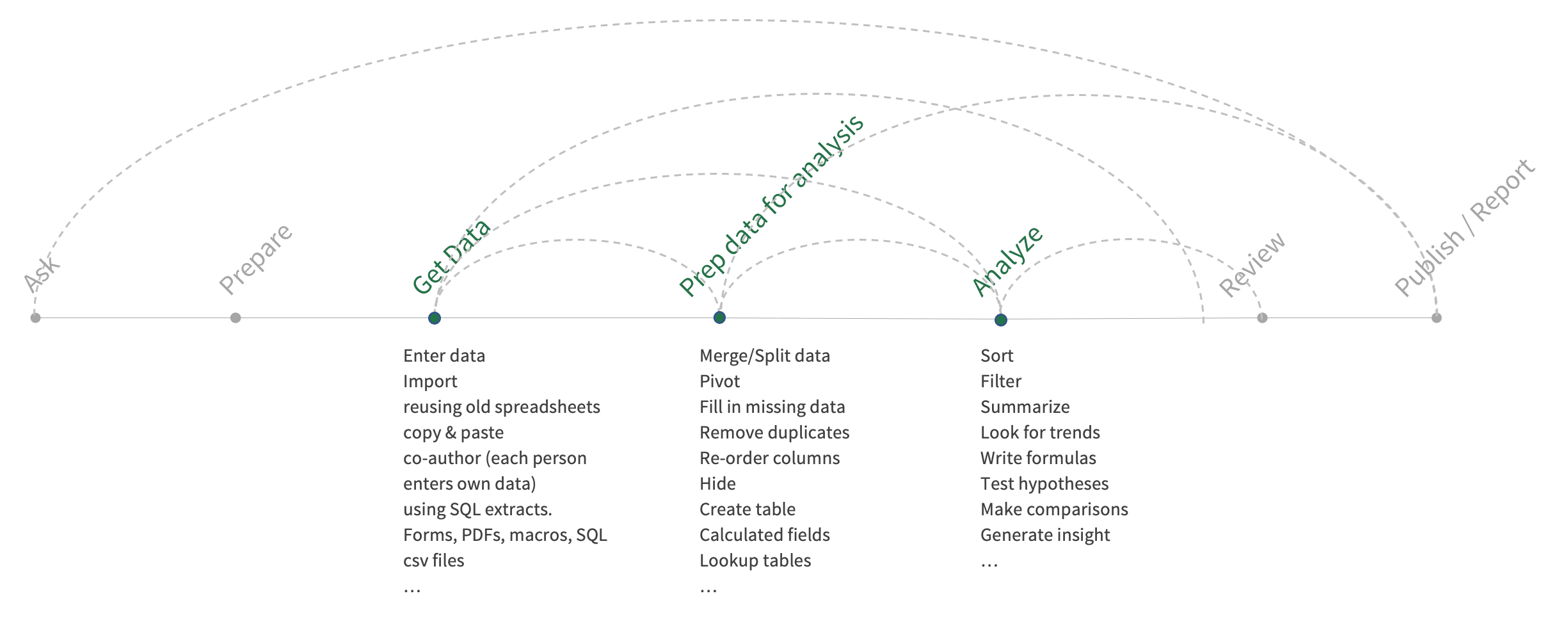
USER JOURNEY MAP — 80% OF TIME SPENT IN 3 KEY STEPS
How might wehelp people find automated, personalized answers in their data without having to learn everything about Excel?
The Vision Story
With the problem and opportunity defined, I led a one-week design sprint with the project team and other designers across Excel to explore possible solutions. We explored everything from new charting and visualization approaches to an early AI research project from Microsoft Research.
I quickly turned the ideas into low fidelity concepts, then partnered with Microsoft’s in house video production team to bring the vision to life. The concept showed Excel automatically analyzing a user’s data and surfacing the most important trends and insights, turning hours of manual analysis into an experience that felt immediate and intuitive. The vision helped us secure funding and establish Intelligent Data Analysis as one of Excel and Office’s 4 core initiatives for the following 3 fiscal years, laying the foundation for what would eventually become the backbone of Copilot in Excel.
Phase 2 - Design iteration and SHIPping TO PRODUCTION
Design Process
Building on the design sprint and user research, I found that people could understand data more quickly when insights were presented visually. Working closely with data scientists during the previous phase 1, we identified the types of insights users valued most, including correlations, outliers, trends, and majorities.
Before Excel could generate meaningful insights, it first needed to understand what the data represented. For example, “Ratings” is numerical, “Brand” is categorical, “Year” is a number but used as a category name. I studied data visualization best practices extensively, engaging with experts, reading Edward Tufte’s works and Storytelling with Data by Cole Knaflic, and interviewing a Bloomberg columnist. My goal was to make complex data immediately understandable. I chose to focuse on simple, familiar chart types such as line, bar, and scatter plots, using color selectively to draw attention to the most important insights and help users quickly understand correlations, trends, and outliers.
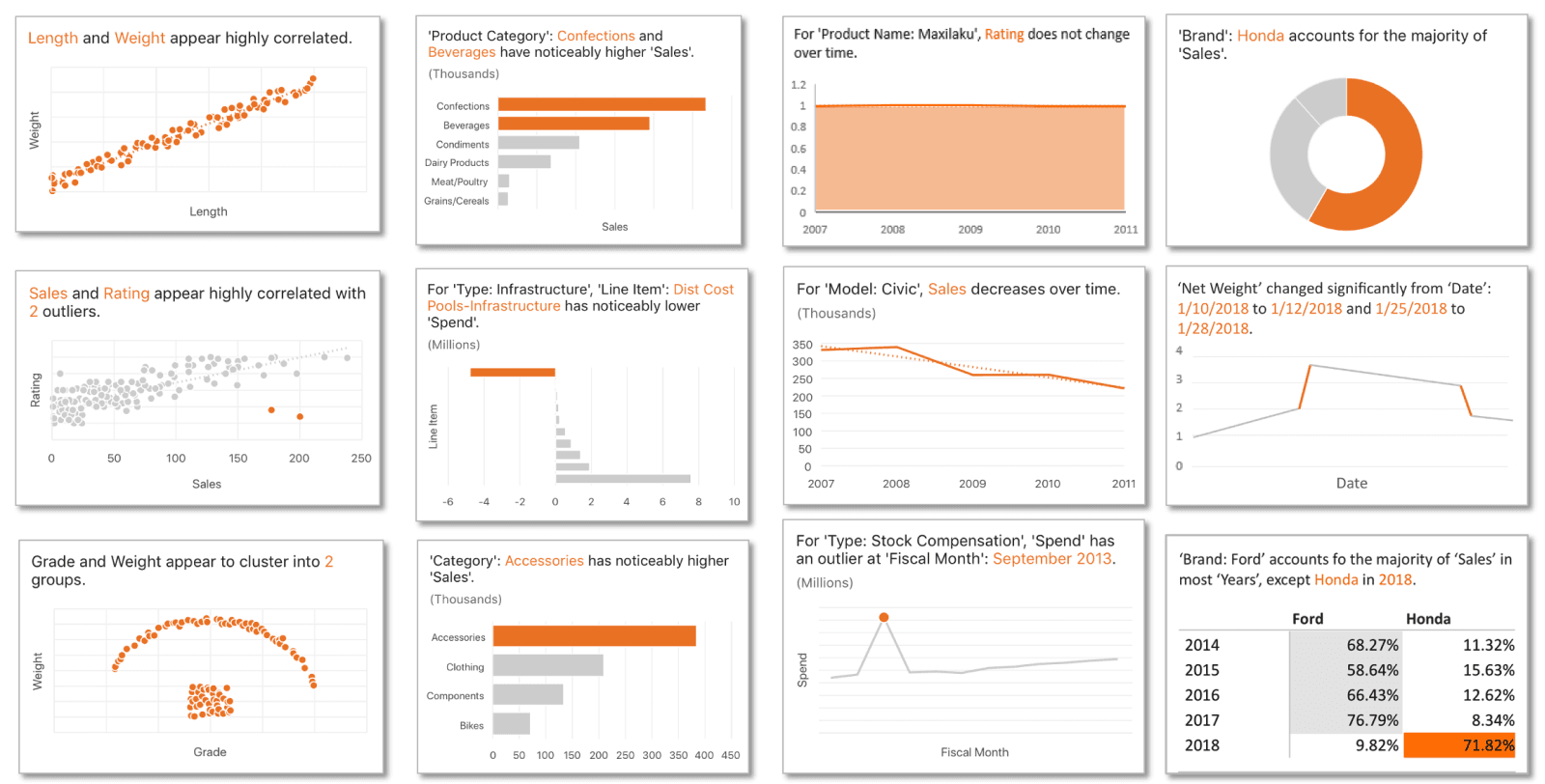
INSIGHT TYPES — CORRELATION, OUTLIERS, TREND, MAJORITY, AND MORE
“Mobile first” principle adaptation: Because most Excel users were on Windows, we prioritized Windows first and built the experience as a web app add-in using React. We then embedded the same add-in into Excel for Mac and Excel Online, allowing us to scale across platforms without rebuilding the product from scratch. This created a unique visual design challenge. The add-in needed to feel native and seamless within Excel across 4 Windows color themes, 2 Mac themes, and any web browser.
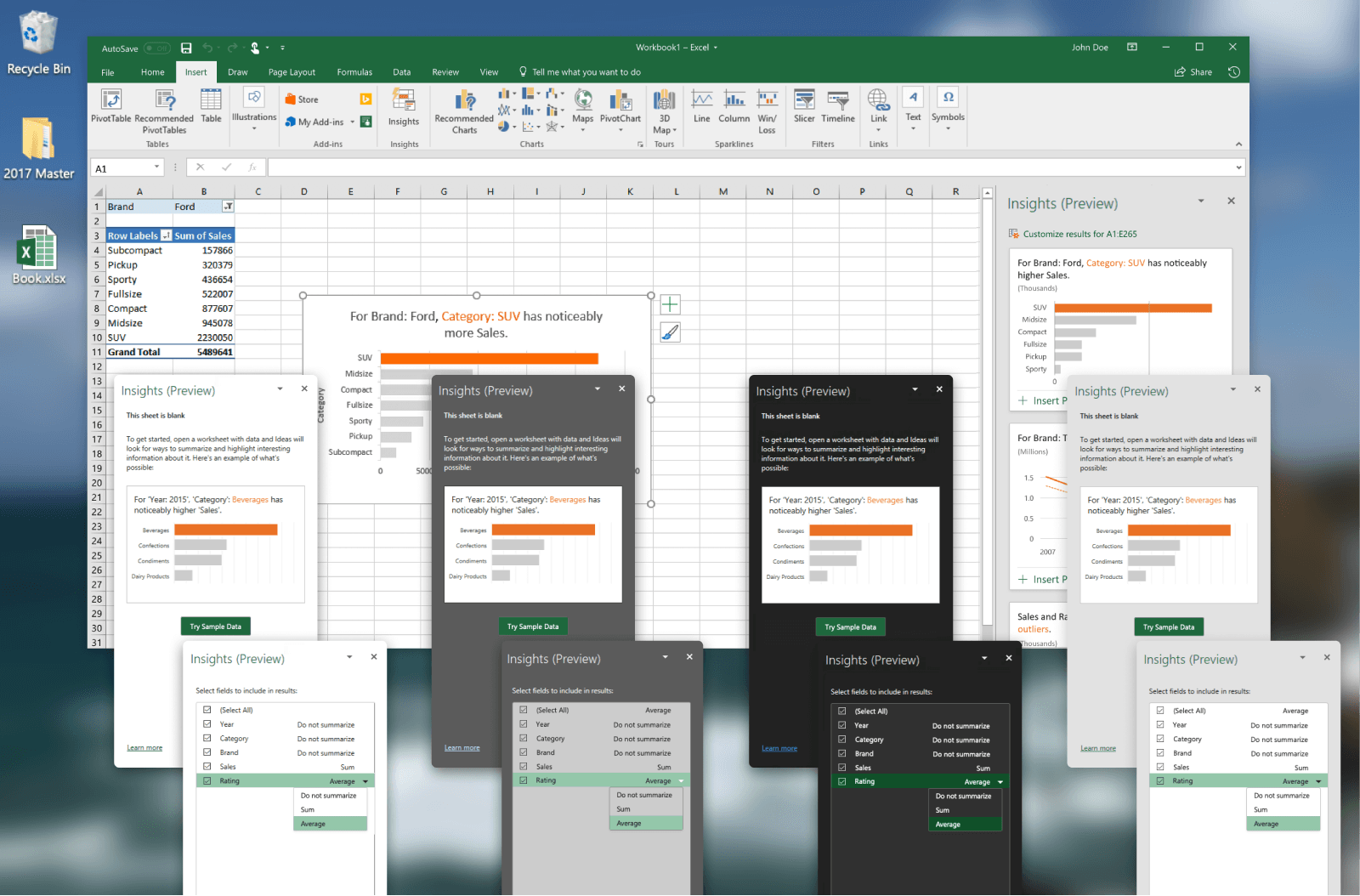
FROM LEFT TO RIGHT: WHITE, GREY, BLACK AND COLORFUL THEMES FOR EXCEL ON WINDOWS, WITH BACKGROUND EXCEL UI ON COLORFUL THEME
Although iOS and Android were not yet part of the shipping plan, I proactively designed 5 entry points and 4 interaction models for the mobile app, building on the existing mobile design language and interaction patterns. This allowed us to establish a foundation for mobile expansion while keeping the initial product focused on the platforms with the largest user base.
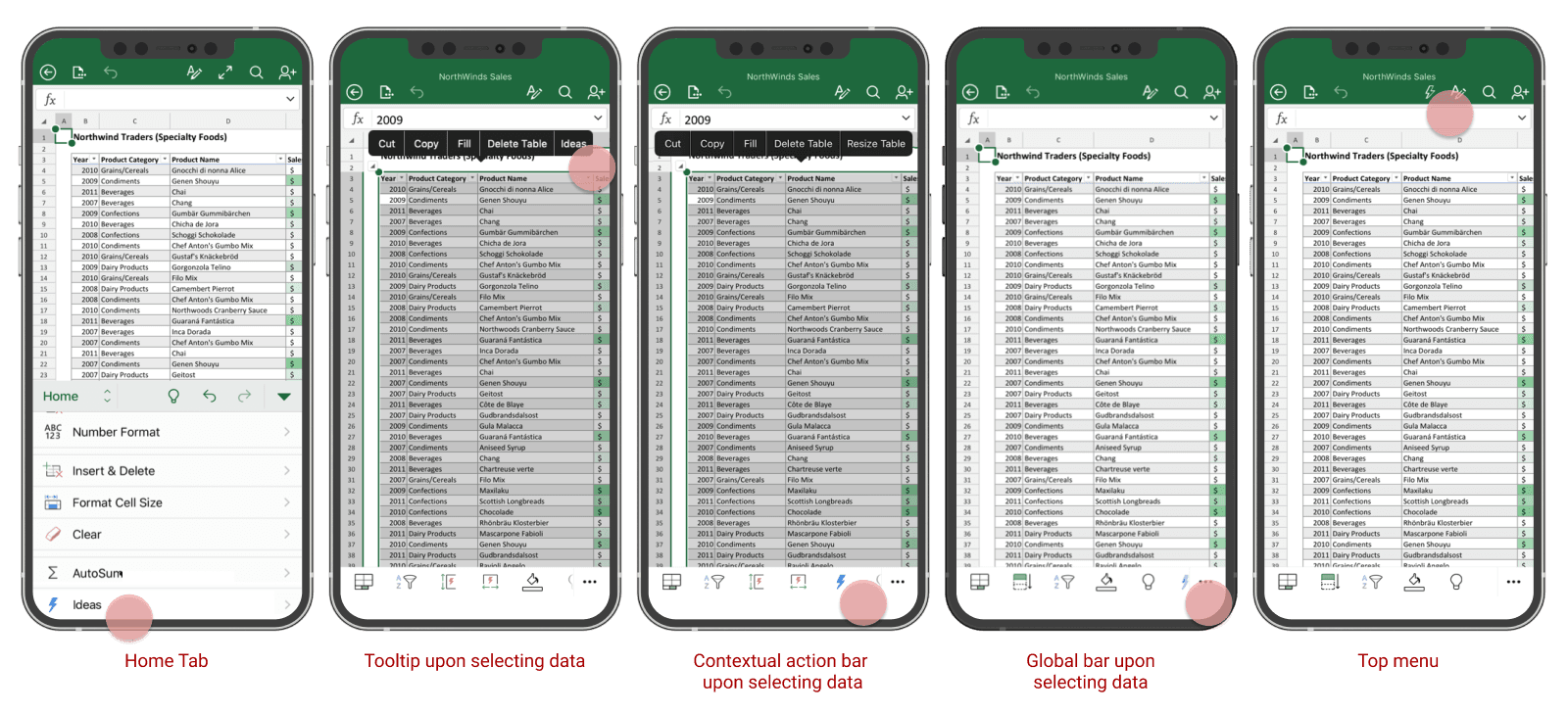
EXPLORATION ON THE ENTRY BUTTON FOR IDEAS
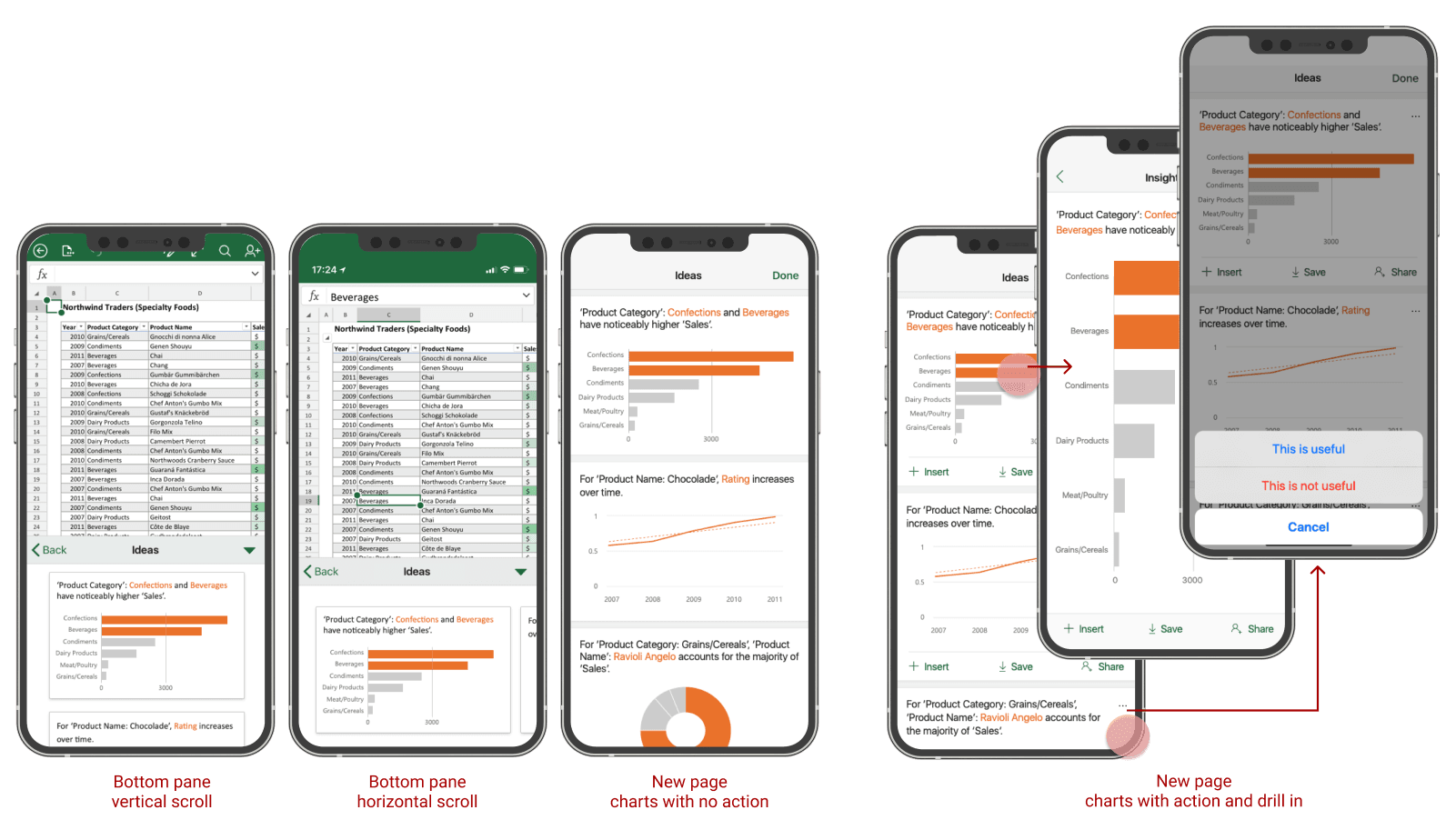
EXPLORATION ON HOW IDEAS SHOWS UP IN EXCEL ON IOS
Iterate after Production
There were several problems we needed to address before shipping, including localization, accessibility, and, most importantly, establishing metrics to measure success. We defined success with the “seen, tried, kept” funnel framework: the number of people who saw the feature, tried it, and kept the recommended charts in their spreadsheet.
Example 1 — Empty sheet error UX: Telemetry showed that 38% of errors occurred when users opened Ideas on a blank sheet. The existing error simply asked users to try a different dataset. I redesigned the experience to offer sample data that users could insert directly into their blank sheet, turning a dead end into a live demo of the feature. The new experience significantly improved our “seen, tried, kept” funnel metrics.
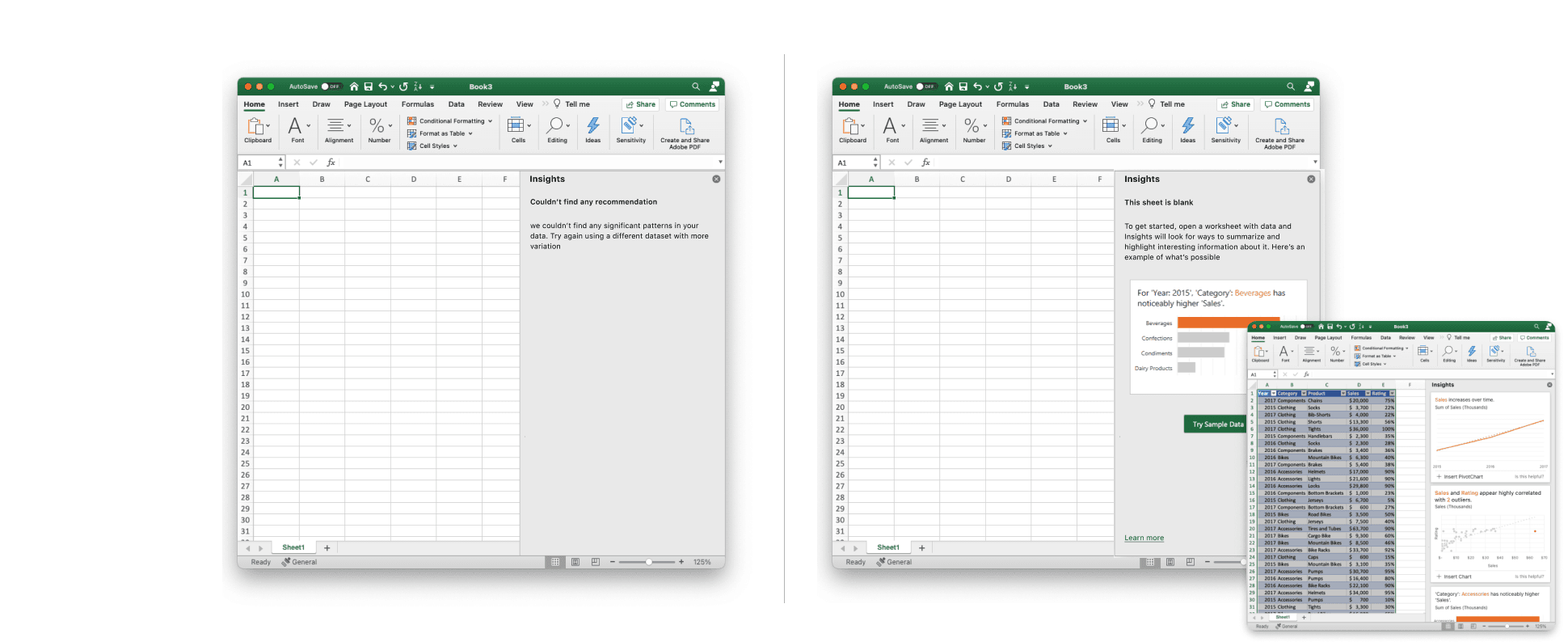
BEFORE & AFTER — EMPTY SHEET ERROR UX
Example 2 — Feedback mechanism for ML personalization: Users were opening Insights but rarely engaging with the “insert chart” button, creating a gap between “seen” and “tried” metrics. We needed to understand which insights users actually found useful, so I designed a feedback mechanism that fed user signals back into the ML model.
Drawing inspiration from feedback patterns in Facebook Feed and Instagram Ads, I designed three feedback mechanisms within Insights and ran an A/B test. We selected the 3rd option based on its higher visibility, generating 10 times more feedback than the other two options. The high volume of user feedback was critical to training and improving this Excel’s first intelligent feature.
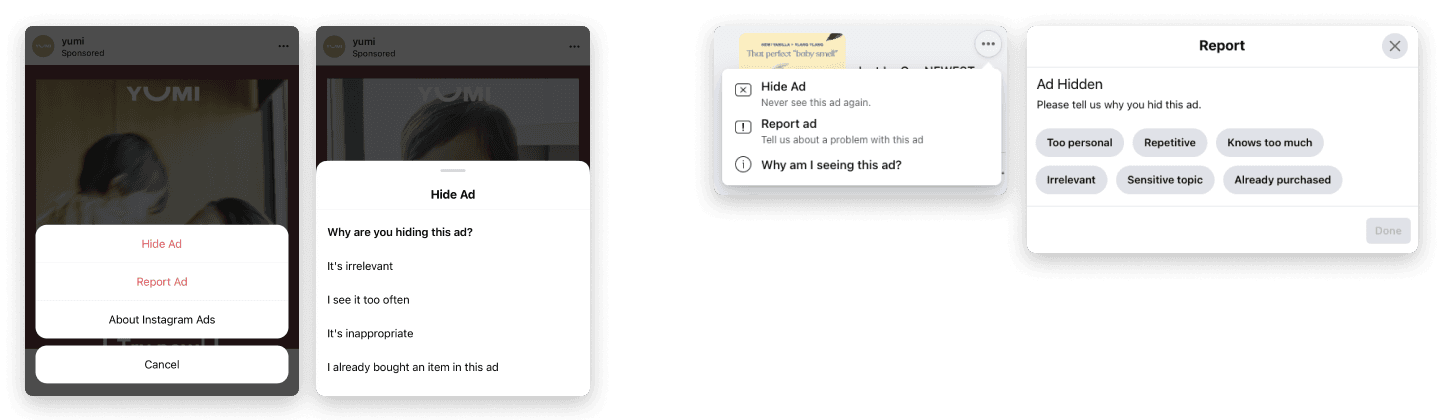
INSTAGRAM (LEFT) AND FACEBOOK (RIGHT)'S DESIGN PATTERN ON PROVIDING FEEDBACK TO SUGGESTED CONTENT
PROVIDE FEEDBACK TO INSIGHTS — OPTION 1, 2, 3 (AUTO PLAY IN SEQUENCE)
Phase 3 - shipped worldwide and extend beyond Excel
Expand Scope and Lead Coherence across Office
Excel Ideas shipped to Office users worldwide and hit 1 million MAU shortly after its official launch.
Looking back at the user journey from our early research, I saw that users always started with a question. This led me to initiate a new project around natural language queries, helping people ask Excel questions directly instead of navigating through its features.
I designed an experience within Ideas where users could ask questions in natural language, and Excel would return the answer along with an explanation through a formula, chart, or table.

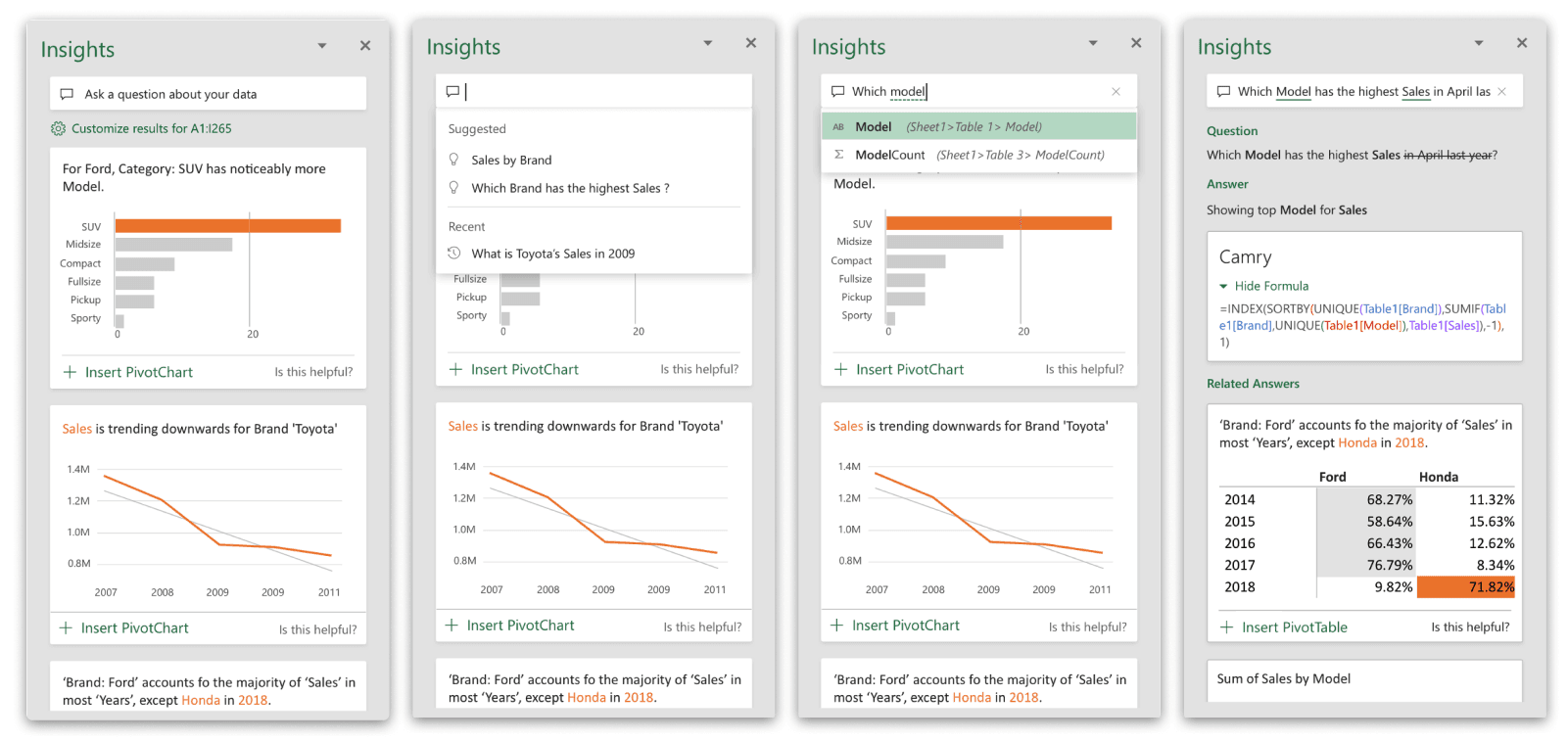
NATURAL LANGUAGE PROCESSING (NLP) ALLOWS USERS TO ASK QUESTIONS TO EXCEL
Through the years I connected with many designers and PMs working in similar spaces across Microsoft, including PowerPoint “Designer,” Word “Editor,” Outlook, PowerBI. I brought this group together for weekly design critiques and working sessions, where we aligned on design patterns, visual language, and information architecture. Together, we established a shared card visual framework, navigation model, feedback mechanism, and visual language, creating a more cohesive intelligent experience across Office.
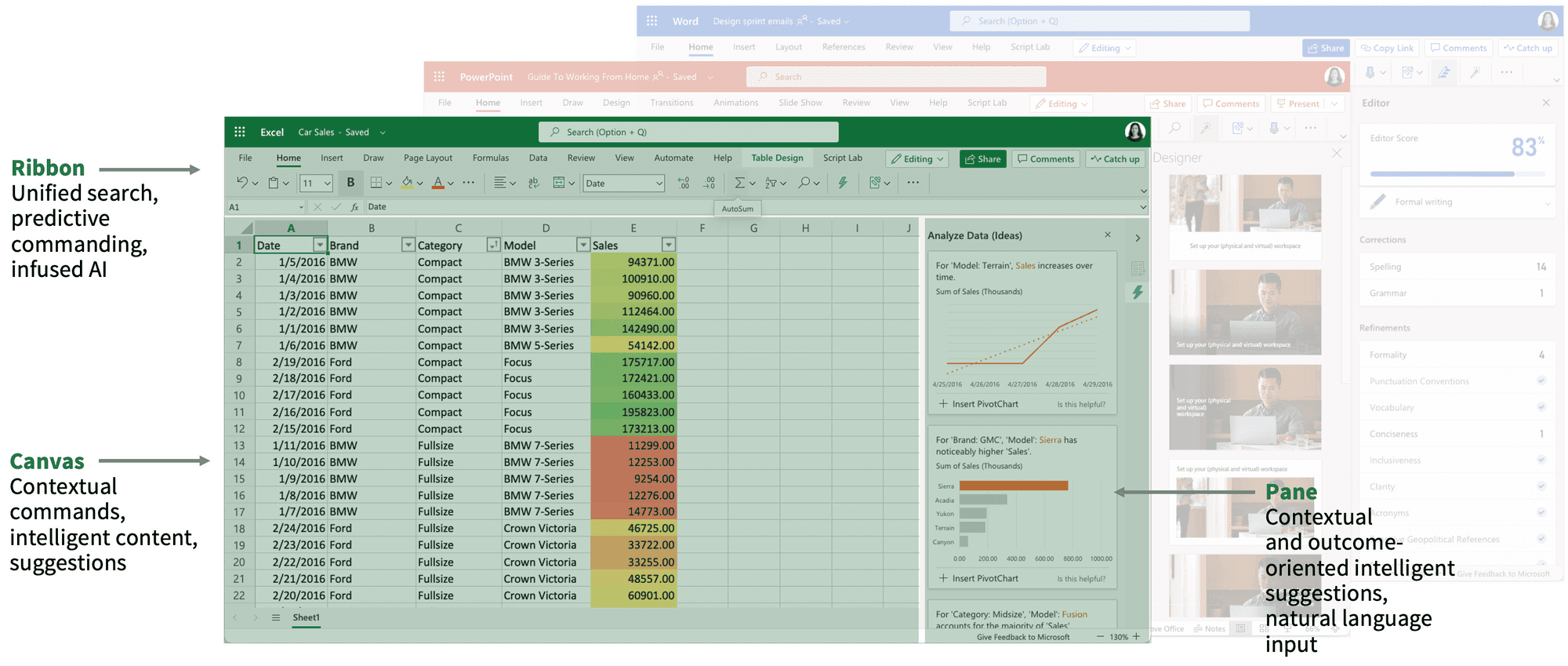
INTELLIGENT SYSTEM MODEL WHERE WE DEFINED THE DESIGN PRINCIPLE FOR DIFFERENT SURFACES IN OFFICE SUITE
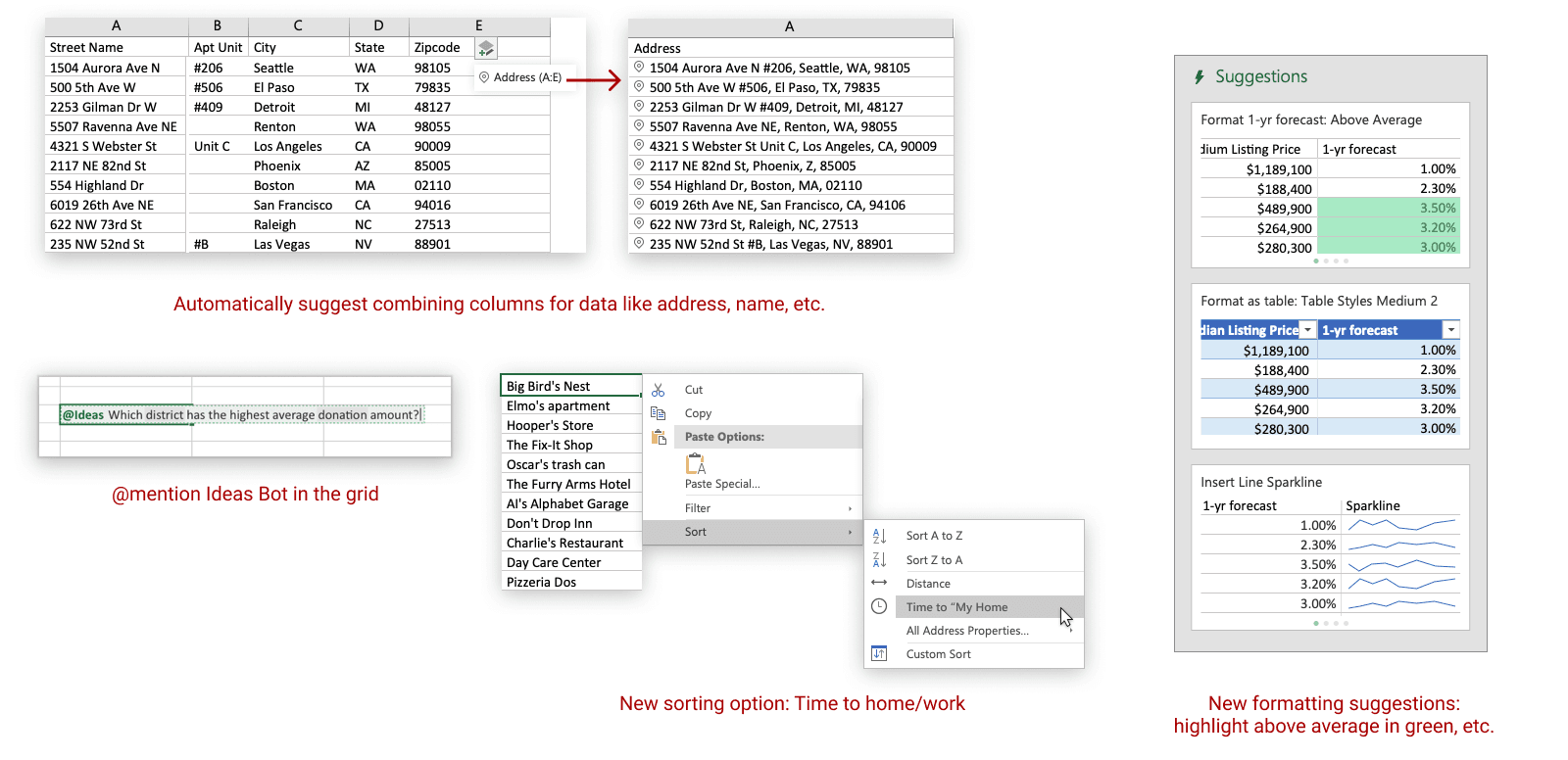
As we continue to learn and evolve, it became clear that surfacing suggestions in the side pane was not always the best experience, especially when users were already focused on their work on the canvas area and the suggestion depended on the content they were working with. I was fortunate to have a highly supportive team of PMs and engineers who encouraged me to continuously reach out to users, gather feedback, and explore new ideas. Based on what we learned, I explored early concepts across different Excel surfaces to bring intelligent assistance closer to where users were working and help them be more productive.
Many of these concepts came to life after my time on the team, and have since evolved into experiences under the Copilot brand.
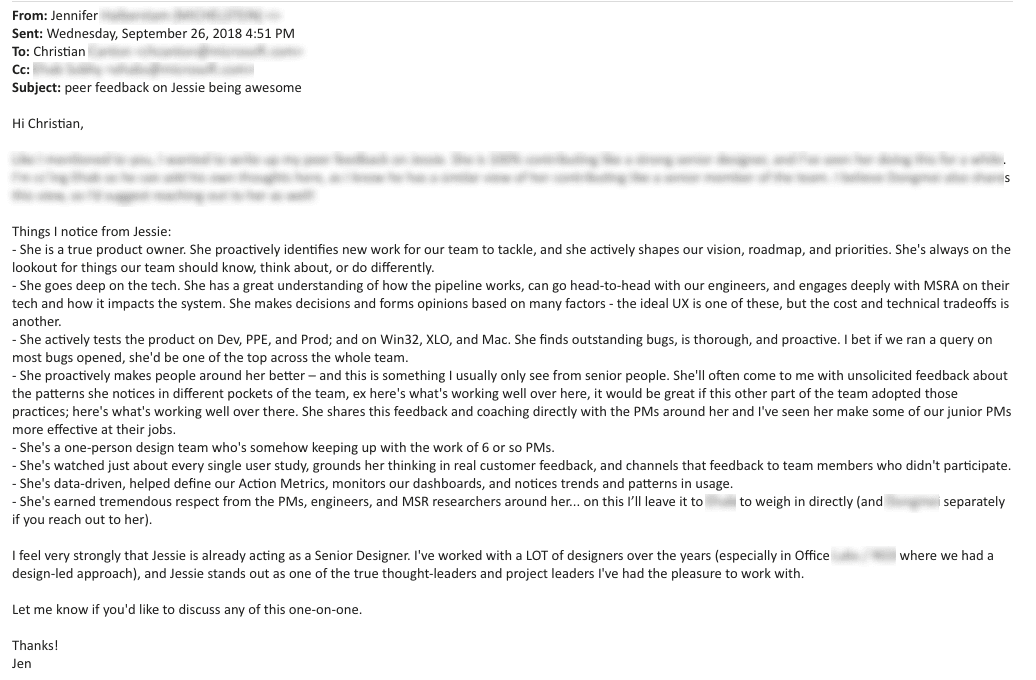
Peer Feedback
In 2018, the PM lead I had partnered with for more than 3 years shared unsolicited feedback with my design manager, highlighting my contribution and impact on the project.
Final Thoughts
Looking back, this remains one of my favorite projects. I had the opportunity to research, define the vision, lead the UX, and ship a product used by millions of people around the world, in over dozens of languages. The PM lead, engineering manager and I worked in a triad model where we made every decision that impacts our users together, from feature prioritization, release plan, project roadmap, and many more. During the project, I was awarded 6 patents and 3 promotions in 3 years, while working with a team of 25+ people across 2 countries who trusted me to lead the UX for millions of users.
In 2022, Excel Ideas was renamed “Analyze Data” and became the first feature added to Excel’s Home tab toolbar in more than 20 years. Watch how people talk about this feature at the initial launch.
Today, the work lives on through Copilot in Microsoft 365, continuing the original vision of helping people turn raw data into instant insight.
PROMO VIDEO FOR COPILOT IN EXCEL